


Skip to content
Wixo

Styles & Design

An app dressed in your brand, not a template.

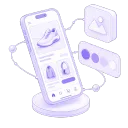
Set your app icon, splash screen, and every interface color from one dashboard. From the moment a customer taps your icon to the moment they check out, the app looks like it was built for your store, because it was.

Why it matters

Customers can tell a generic wrapper in five seconds. Wixo doesn't give them the chance.

A default app icon, a blank white loading screen, navy-blue system buttons that belong to no brand — these are the tells that an app is just a browser window pretending to be a product. Customers notice, even if they can't name what feels off, and that first impression decides whether they trust the app enough to open it again. For a boutique that spent years getting its in-store look right, an app that doesn't match reads as a downgrade, not an upgrade.

Wixo puts the icon, the splash screen, and every key interface color under your control — primary, secondary, background, text, and the color behind notification badges. Set them once from the dashboard and they apply across the whole app: navigation, buttons, active states, alerts. The result is an app a customer can't distinguish from the rest of your brand, because nothing in it was left at the default.

What the dashboard controls

Four settings turn a generic wrapper into your app.

Every part of the app's look is configured from the same dashboard, so nothing ever needs a developer or a new build.

01First impression

Your icon on their home screen, your screen on launch.

Upload your own icon for iOS and Android, and the system optimizes it automatically for every device size, so it looks sharp on any phone. Set a custom splash screen too, the first thing a customer sees while the app loads, carrying your logo and colors instead of a blank screen. From install to first tap, nothing about the app reads as a placeholder.

02Your brand's core colors

Two colors set the tone for the entire app.

Primary and secondary colors apply to your main navigation, buttons, active states, and the calls to action you most want customers to notice. Set them to match your website and the app becomes a natural extension of your store, not a separate thing customers have to learn. It's the fastest way to change the entire look of the app without touching each screen by hand.

03Noticed, not generic

Even the small details carry your brand.

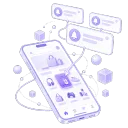
Give badges and alert indicators their own color, so new messages, rewards, and updates catch a customer's eye the moment they open the app. These are small elements, but customers see them constantly. Tailored to your brand, a badge reads as part of the design. Left at a system default, it reads as something bolted on.

04Built to be read

Colors that look like you and stay easy to read.

Set background and text colors independently, so every screen stays legible and comfortable to look at, whatever style you're going for: a dark theme, a light minimalist look, or something bold and vibrant. Customers scroll fast and decide fast on mobile, so contrast and readability matter as much as the color choice itself. Get both right and the app feels considered, not just colorful.

See your store as a fully branded mobile app.

Request your free demo now and within 72 hours we'll prepare a working demo with your logo, splash screen, and brand colors. Open and test it directly on your phone — completely free with no commitment.

Get my free preview

Set up in the same sitting

Styles & Design is one of the modules you run from the same dashboard.

Mobile navigation

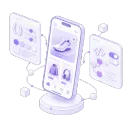
The icons and accents you choose here carry through to the menu, so mobile navigation matches the rest of the app without any extra setup.
Mobile navigation

CSS & JS

Need complete flexibility? Custom CSS & JS lets you inject your own code directly into the mobile app, giving you total freedom to fine-tune styles, modify layouts, and tweak app behavior beyond standard branding.
CSS & JS

Pricing

Styles and design is included with every Wixo plan. Choose a monthly or annual subscription.
Pricing

Questions

What merchants ask about branding and colors.

Can I use my own app icon and splash screen?

Yes. Upload your own icon for iOS and Android and the system optimizes it for different devices automatically. You can also set a custom splash screen, the screen a customer sees while the app loads, with your logo and colors in place.

Which colors can I actually control?

Primary and secondary colors, which run through your navigation, buttons, and active states; background and text colors for every screen; and a dedicated color for notification badges and alert indicators. Between them, they cover every part of the interface a customer sees.

Do visual or color changes require a new App Store or Google Play submission?

Interface colors (buttons, navigation, text, screen backgrounds, and badges) are managed in real time from the Wixo dashboard and update instantly without Apple or Google review. The app icon and the splash screen (including its background color) are compiled directly into the app build, so updating them requires publishing a new version to Android and iOS.